Virtual Event Best Practices for Pre-Recorded Sessions
The most reliable way to run a virtual event is to record and edit the sessions in advance, stream each one as a live broadcast at its scheduled time, and have the speaker answer questions in the chat while it plays. Attendees still get a start time, a shared chat and a Q&A. The organizer removes two common risks of a live event: a speaker's connection dropping and mistakes made on air.
This guide gives ten practices for events built on pre-recorded sessions, a sample run-of-show, and the platform rules that apply.
Which sessions to pre-record
Not every session should be recorded. Use this as a starting point:
| Session | Recommendation |
|---|---|
| Keynote or talk with slides | Pre-record |
| Product demo | Pre-record, so the demo cannot fail |
| Speaker in a far time zone | Pre-record |
| Panel discussion | Live, or pre-record the panel and run a live Q&A after |
| Audience Q&A | Live |
| Networking or breakout rooms | Live |
A common pattern is hybrid: a recorded talk of 20 to 40 minutes, then 10 to 15 minutes of live questions with the speaker.
1. Set the format of each session early
Decide per session whether it is recorded, live or hybrid, and tell speakers when you invite them. A speaker who knows the talk will be recorded can plan to edit it; a speaker told a week before the event may not have time to record twice.
2. Give speakers a recording spec and a deadline
Send every speaker the same one-page brief:
- Format: landscape 16:9, 1080p, 30 fps.
- File: MP4 with H.264 video and AAC audio. Many editors call this "H.264" or "YouTube 1080p" on export.
- Audio: an external or headset microphone in a quiet room.
- Screen and camera: slides full screen, camera at eye level, light in front of the speaker, not behind.
- Deadline: at least one week before the event, so there is time to fix problems.
If a speaker sends a phone recording in HEVC or another format your tools reject, convert it to H.264 before the event (step 4 shows how to check).
3. Edit for pace and add captions
A recording is a chance to cut what hurts a live session: the first minute of "can you hear me?", long pauses, slide mix-ups and tangents. Keep a talk shorter than it would be live; editing removes the dead time, not content.
Burn captions into the video, or add them in the editor as open captions. Captions in the video file appear on every platform the stream reaches, and they help viewers who watch with the sound off or in a second language.
4. Check every file before event day
For each session:
- Watch the whole file once, start to end, with headphones.
- Drop it into the video pre-flight checker. It reads the codec, resolution, bitrate and audio format in your browser, without uploading the file, and flags what YouTube, Facebook or Twitch would reject.
- Check the length against your schedule and your streaming tool's limit per stream.
5. Schedule each session as a live stream, not a video upload
A pre-recorded session streamed at a fixed time is often called simulive. Viewers join together, the chat runs live, and the session appears on the platform as a live broadcast.
There are two common ways to do it:
- YouTube Premiere. Free, but YouTube only. After it ends it stays on your channel as a regular upload.
- A cloud streaming service. You upload the file, pick the platforms and the start time, and the service's servers stream it. Pre-recorded Live Stream works this way: it streams one video for up to 3 hours to up to 6 destinations plus a custom RTMP server, and your computer can be off during the event.
If your audience is spread across YouTube, Facebook and LinkedIn, stream to all of them at once. The multistreaming guide covers settings and rules. For an event on an internal page or a webinar platform, use its RTMP address as a custom destination.
6. Tell attendees the session is recorded
Say it in the title or description, and let the host say it at the start: "This talk was recorded last week. Our speaker is in the chat now and will answer questions live."
On Facebook this is a rule, not a courtesy. Facebook Live policies require pre-recorded content in a live broadcast to be clearly marked as pre-recorded. Being open about it also keeps trust: attendees came for the content and for answers, and they get both. The truth about fake live streams covers where the line is.
7. Staff the chat for every session
The chat is what makes a pre-recorded session feel live. Plan it like a live session:
- The speaker in the chat. Freed from presenting, speakers can answer questions in detail while their talk plays.
- A moderator. Welcomes people, answers logistics ("the slides are at this link"), removes spam and passes the best questions to the speaker.
- Prepared answers and links. Write answers to the questions you expect, and prepare the links you will share: slides, resources, the next session. Pin the most important one; YouTube and Facebook both let you pin a comment.
If you stream to several platforms, a tool that merges the chats into one feed saves the moderator from switching tabs.
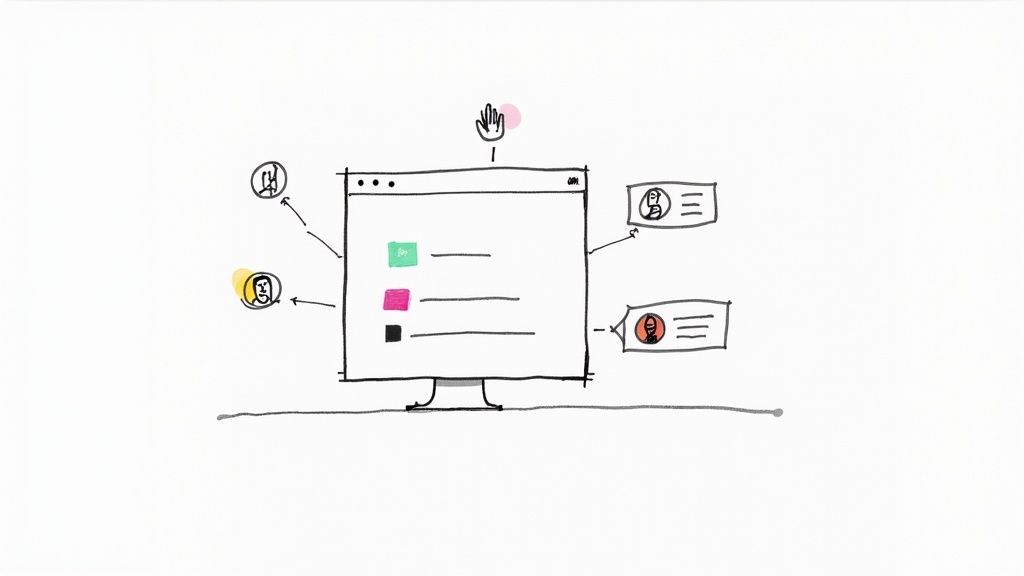
8. Add live moments around the recording
A short live segment before or after the recording adds energy and room for questions:
- Live intro. The host welcomes attendees and says what comes next.
- Live Q&A after the talk. The speaker joins on camera and answers the top questions from the chat.
- Live transition. Between sessions, the host recaps and points to the next one.
These can be separate short live streams on the same channel, or live segments in your event platform. Keep them brief and scripted; the recorded talk carries the content.
9. Rehearse the schedule, not only the content
Run a test a few days before, with the real files and real destinations:
- Make sure live streaming is turned on for every account. YouTube requires a verified channel with no live streaming restrictions in the past 90 days. LinkedIn Live is only open to members and Pages that meet its access criteria.
- Schedule a private or unlisted test stream and watch it on a phone using mobile data.
- For LinkedIn events, note the timing: the stream URL and key become available one hour before the start (two hours for verified Pages).
- Confirm who moderates which session, and where they will be during the event.
10. Reuse the recordings after the event
The same files can run again:
- Replay for another time zone. Schedule the session again at a time that suits attendees in Asia or the Americas, with a moderator in the chat.
- Weekly sessions. A recurring schedule lets one recording run every week for new registrants, for example an onboarding class or a product demo.
- On demand. Most platforms keep the live replay. Share it with registrants who missed the session.
The automated webinar software guide covers running recorded webinars on a repeat schedule.
Sample run-of-show for one session
| Time | What happens | Who |
|---|---|---|
| −3 days | Test stream with the final file | Producer |
| −1 day | Reminder email with the watch link | Marketing |
| −15 min | Moderator opens chats on every platform | Moderator |
| 0:00 | Recorded talk starts streaming; pinned comment says it is recorded | Streaming service |
| 0:00–0:35 | Speaker and moderator answer questions in the chat | Speaker, moderator |
| 0:35 | Talk ends; live Q&A link is posted in the chat | Moderator |
| 0:35–0:50 | Live Q&A on camera | Speaker, host |
| +1 day | Replay link and slides sent to registrants | Marketing |
Common questions
Can I use pre-recorded sessions on Facebook Live?
Yes, as long as the pre-recorded content is clearly marked as pre-recorded, for example in the title or description. Looping videos and static images are not allowed as live streams on Facebook.
How long can a pre-recorded session be?
It depends on the platform and your streaming tool. Facebook Live allows up to 8 hours per broadcast and Twitch up to 48 hours. Your streaming tool may set a lower limit per stream; check the plans and limits before you plan a long session.
Do attendees still take part if the session is recorded?
They take part through the chat, the Q&A and any live segments you add. Tell them the speaker is in the chat, and answer questions while the session plays; the FAQ covers what viewers see during a pre-recorded stream.