Bitrate for Streaming: 1080p, 720p and Platform Settings
For a 1080p stream, use 4,500 to 6,000 kbps at 30 fps and 6,000 to 9,000 kbps at 60 fps. YouTube recommends more (10 to 12 Mbps), LinkedIn caps at 6 Mbps, and Twitch recommends 6,000 kbps for 1080p60. Whatever you pick, keep it well below your stable upload speed, because dropped frames look worse than a softer picture.
This guide gives each platform's published numbers, the encoder settings that go with them, and what changes when you stream a finished video file instead of a camera.
What bitrate means
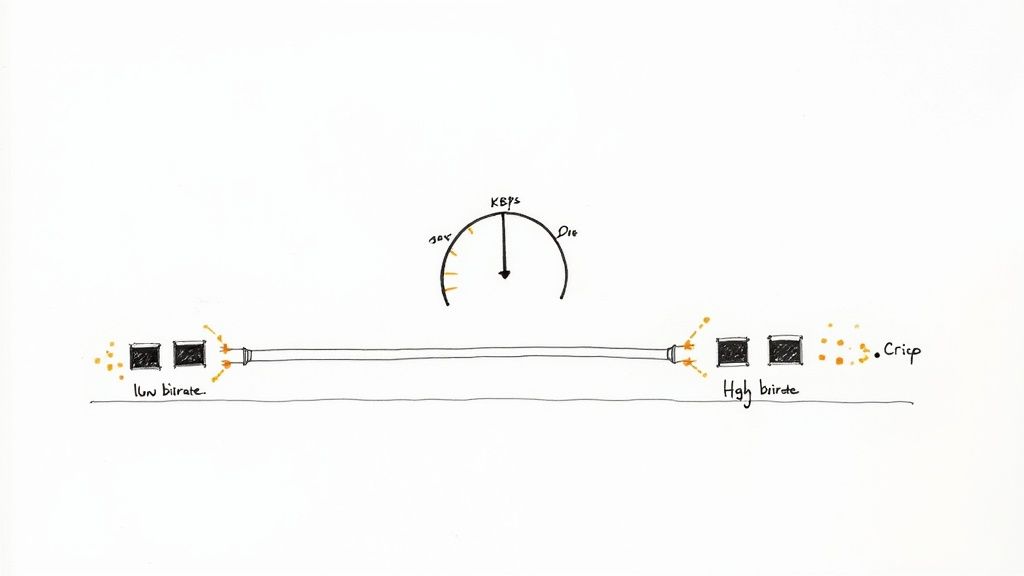
Bitrate is the amount of data your stream sends each second. It is measured in kilobits per second (kbps) or megabits per second (Mbps); 6,000 kbps is 6 Mbps.
A stream carries two bitrates added together:
- Video bitrate. Almost all of the data. The more pixels and frames per second, the more bitrate the encoder needs to keep the picture sharp.
- Audio bitrate. Small, usually 128 kbps. Bad audio loses viewers faster than a soft picture, so do not cut it to save bandwidth.
When the video bitrate is too low for the resolution, the encoder throws away detail and you see blocks and smearing, most of all in fast motion. When the total bitrate is higher than your connection can send, the encoder drops frames and viewers see stutter or buffering. The right number sits between those two limits.
Three things decide it:
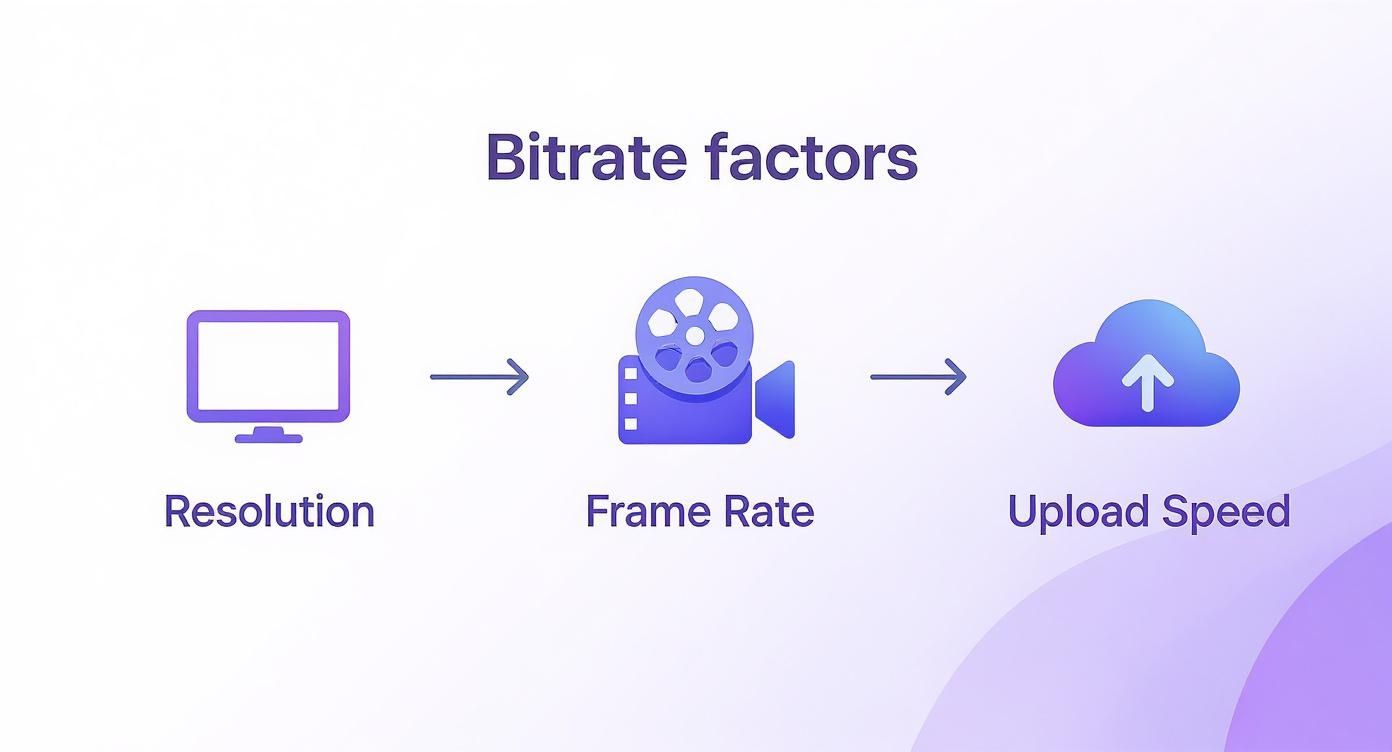
- Resolution. 1080p has 2.25 times the pixels of 720p.
- Frame rate. 60 fps sends twice as many frames as 30 fps.
- Motion in the content. A slide presentation or a talking head changes little between frames and looks clean at a lower bitrate. Sports and games need the top of each range.
Bitrate for 1080p
These are the numbers each platform publishes for 1080p with H.264 video, checked on the official help pages in September 2026. YouTube's and Twitch's figures are recommendations, Facebook's are ranges, and LinkedIn's is a maximum (LinkedIn lists 30 fps only).
| 1080p | 30 fps | 60 fps |
|---|---|---|
| YouTube | 10 Mbps | 12 Mbps |
| 3–6 Mbps | 4.5–9 Mbps | |
| Twitch | 4.5 Mbps | 6 Mbps |
| 6 Mbps max | Not listed |
Sources: YouTube encoder settings, Facebook Live requirements, Twitch broadcasting guidelines, LinkedIn Live encoder settings.
How to read the table:
- One platform, 1080p30: use that platform's number. YouTube's 10 Mbps is a recommendation, not a limit, so a lower bitrate still streams.
- Several platforms at once from one encoder: use 1080p at 30 fps and 6,000 kbps. It is Facebook's top figure for 1080p30, LinkedIn's maximum and Twitch's highest recommendation, and YouTube accepts it.
- 1080p60: only worth it for fast motion. Twitch recommends 6,000 kbps, Facebook allows up to 9,000 kbps, and LinkedIn lists only 30 fps.
- Upload speed under about 8 Mbps: drop to 720p. A clean 720p stream looks better than a 1080p stream that drops frames.
Facebook also sets the H.264 level: 4.1 for 1080p up to 30 fps and 4.2 for 1080p at 60 fps. Most encoders pick the level on their own, but a file or encoder profile locked to a lower level can fail on Facebook even when the bitrate is right.
Bitrate for 720p and lower
| 720p | 30 fps | 60 fps |
|---|---|---|
| YouTube | 4 Mbps | 6 Mbps |
| 1.5–4 Mbps | 2.25–6 Mbps | |
| Twitch | 3 Mbps | 4.5 Mbps |
| 3.5 Mbps | Not listed |
LinkedIn recommends 720p at 30 fps and 3.5 Mbps as its default. For 480p, Facebook lists 600 to 2,000 kbps.
Audio bitrate
All four platforms take AAC audio, and 128 kbps stereo AAC fits every platform's guidance:
- YouTube: 128 kbps for stereo, AAC or MP3, 44.1 kHz.
- Facebook: 128 kbps preferred, 256 kbps maximum, 44.1 or 48 kHz.
- Twitch: AAC-LC, 96 kbps recommended, 160 kbps maximum.
- LinkedIn: 128 kbps at 48 kHz.
Go above 160 kbps only if you stream to YouTube or Facebook alone and the content is music.
Encoder settings that go with the bitrate
A correct bitrate with the wrong rate control or keyframe interval still causes problems. These settings are the same on every platform above:
- Rate control: CBR (constant bitrate). YouTube, Facebook and Twitch all ask for it. Variable bitrate drops low in quiet scenes and then spikes in busy ones, and the spikes cause buffering.
- Keyframe interval: 2 seconds. YouTube and Facebook say do not exceed 4 seconds. Twitch and LinkedIn ask for 2. In OBS, type
2in the keyframe interval field;0means "auto" and is not the same. - Profile: High or Main. Twitch lists Main/High. LinkedIn says to switch to Baseline if a stream fails to process.
- Encoder preset. Twitch suggests starting x264 at
veryfastand moving towardmediumif your CPU has room. A hardware encoder such as NVENC takes the load off the CPU.
Match the bitrate to your upload speed
Run a speed test several times, at the hour you plan to stream, and note the lowest upload result. Keep the total stream bitrate (video plus audio) at about 75 to 80 percent of that number. The rest absorbs dips on your line and other devices in the house.
| Stable upload speed | Safe setting |
|---|---|
| 5 Mbps | 720p30 at 3,000 kbps |
| 8 Mbps | 1080p30 at 6,000 kbps |
| 10 Mbps | 1080p60 at 7,500 kbps |
| 15 Mbps or more | 1080p60 at 9,000 kbps, or YouTube's 12 Mbps |
If your computer sends a separate stream to each platform, the bitrate multiplies: three destinations at 6,000 kbps need 18 Mbps of upload. A relay service sends one stream to its server and copies it from there. The multistreaming guide covers both setups.
Bitrate for a pre-recorded video file
When you stream a finished video instead of a camera, there are two bitrates, and they do different jobs:
- The file's bitrate is the quality of your source. It was set when you exported the video.
- The stream's bitrate is what reaches the platform. The streaming tool sets it when it re-encodes the file.
OBS with a Media Source decodes your file and encodes it again for the stream. Cloud streaming services usually do the same on their servers. The stream settings in the sections above apply to that second step. Your file only needs to carry more detail than the stream will, because re-encoding can remove detail but never add it back.
Practical settings for the export:
- Resolution: 1080p if you will stream 1080p. Do not export 720p and stream it as 1080p.
- Frame rate: keep the frame rate you recorded at. Converting 30 fps to 60 fps adds frames that carry no new motion.
- Quality: export H.264 at a constant quality setting instead of a fixed bitrate. HandBrake recommends RF 20 to 24 for 1080p; lower numbers mean higher quality and a bigger file.
- Audio: AAC, 48 kHz, 128 to 192 kbps.
The MP4 to H.264 guide has the exact FFmpeg and HandBrake steps.
How big the file will be
File size is bitrate multiplied by length. Divide by 8 to turn megabits into megabytes:
| Average bitrate | 1-hour video | 3-hour video |
|---|---|---|
| 4 Mbps | 1.8 GB | 5.4 GB |
| 8 Mbps | 3.6 GB | 10.8 GB |
| 12 Mbps | 5.4 GB | 16.2 GB |
The size matters when the service you upload to has a file limit. Pre-recorded Live Stream accepts files up to 6 GB and streams up to 3 hours, so a 3-hour video needs an average bitrate of about 4.4 Mbps or less to fit in one file. A 1-hour webinar at 10 Mbps is about 4.5 GB and fits with room to spare.
Before you schedule, drop the file into the video pre-flight checker. It reads the codec, H.264 level, bitrate and audio format in your browser, without uploading the file, and compares them with YouTube, Facebook and Twitch limits.
With a cloud service, your home connection only has to upload the file once, days before if you like. During the event the stream leaves from the service's servers, so your upload speed no longer limits the bitrate and your computer can be off. See how a recorded live stream works for the full setup.
Common questions
What happens if my bitrate is too high?
If it is higher than your connection can send, the encoder drops frames and viewers see a choppy picture or a buffering wheel. If it is above what a platform accepts, the platform may reject the stream or re-compress it. Lower the bitrate by 10 to 20 percent and watch the dropped-frames counter in your encoder.
Does a higher bitrate always look better?
No. Above a certain point the picture stops improving, and viewers on slow connections pay for the extra data. Twitch's guidelines note that its numbers were tested to give the best quality without wasting bandwidth. A talking head at 1080p30 looks the same at 6,000 and 9,000 kbps.
Should I use CBR or VBR?
Use CBR for the live stream; the platforms ask for it. Use constant quality (CRF or RF) or VBR when you export a file, because the file is not sent in real time and variable bitrate gives better quality for the same size.
Can I stream 1080p with a 5 Mbps upload?
Not reliably. 1080p needs at least 4,500 kbps of video, which leaves no headroom on a 5 Mbps line. Stream 720p at 3,000 kbps, or upload the video to a cloud service and let it stream from there.