How to Schedule a Pre-Recorded Video on Facebook Live
To schedule a pre-recorded video on Facebook Live, create a scheduled Live video or a Live event in Facebook's Live Producer, then stream your video file to it at the start time. Facebook has no option to upload a file and have Facebook itself play it as Live, so OBS on your computer or a cloud streaming service must send the video. Facebook asks you to mark pre-recorded footage in a Live broadcast as pre-recorded.
Below are Meta's own options first, then the cloud option, with the steps for each. All Meta details come from the Meta Business Help Center, checked in September 2026.
Before you start
Check these four points first.
- Your account is eligible. Meta requires the account to be at least 60 days old, and the Page or professional mode profile to have at least 100 followers (Live Producer requirements).
- You are on a computer. Scheduling a Live video and creating a Live event are desktop features.
- The video is under 8 hours. Facebook's maximum Live video length is 8 hours (requirements for Live videos).
- You plan to label it. Facebook's Live policies say that Live broadcasts with pre-recorded content must be clearly marked as pre-recorded. More on this below.
What happened to Facebook Premieres?
Facebook used to have Premieres, which played an uploaded video at a set time with a live chat. Meta removed the feature in August 2022 and suggested a scheduled video post or a Live broadcast instead (Social Media Today report). Meta's Premieres help pages now return "Page not found".
So today there are three routes: a scheduled Live video, a Live event, or a scheduled regular video post.
Meta's option 1: schedule a Live video in Live Producer
Use this when the stream starts within the next 24 hours. Meta's scheduling guide lists these steps:
- Go to Live Producer.
- Under Choose where to post, select your Page or profile.
- Click Select on the Go live card.
- Under When are you going live?, choose Later.
- Choose the date and time. Live Producer accepts a time up to 24 hours ahead.
- Set up the post and click Schedule Live video.
Facebook does not notify your audience when you schedule a Live video. The video appears in the Feed when it starts. If you set it up with streaming software, the stream starts automatically at the scheduled time, as long as the software is connected and sending video.
Meta's option 2: create a Live event
Use this when the stream is more than a day away, or when you want people to see the date in advance. Facebook publishes an announcement post for the event, and viewers can join it.
- From your Page or profile, click Live video.
- Under Create live video event, click Create event.
- Add a name, a description, the start date and the start time.
- Choose the privacy. Events hosted by a Page are always public.
- Click Create event.
Then set up the Live video for the event. If you go live with streaming software, the stream starts automatically at the scheduled time once the software is connected (Live event guide).
Meta's option 3: a scheduled video post
If the video does not need to be live, schedule it as a regular video post in Meta Business Suite. It needs no streaming software. It is not a Live video, so there is no live chat, and viewers watch it whenever they find it.
Send the video with OBS (free)
Options 1 and 2 schedule the post, but Facebook still needs a live feed at the start time. OBS Studio is free and can play your file as that feed. Your computer does the streaming, so it must stay on and online for the full video.
- In Live Producer, choose Streaming software as the video source.
- Copy the Stream key. Meta notes that the key is valid only for the current stream.
- In OBS, open Settings > Stream, choose Facebook Live, and paste the key.
- Add a Media Source and select your video file.
- Set the output to match Facebook's requirements (table below).
- Click Start Streaming in OBS. When the preview appears in Live Producer, the stream is connected.
- For a scheduled Live video or event, keep OBS streaming and the broadcast starts at the scheduled time. Otherwise, click Go live in Live Producer.
Facebook's technical requirements for Live video:
| Setting | Facebook's requirement |
|---|---|
| Resolution | 1080p or 720p, at 30 or 60 fps |
| Maximum recommended bitrate | 15 Mbps |
| Video codec | H.264 |
| Keyframe interval | 2 seconds recommended, 4 at most |
| Bitrate encoding | CBR (constant bitrate) |
| Audio | AAC, 128 Kbps preferred, stereo, 44.1 or 48 kHz |
| Maximum length | 8 hours |
To check your file against these specs before the event, use the free video pre-flight checker. It runs in your browser and does not upload the file. Our bitrate guide explains the numbers.
Send the video from the cloud
A cloud streaming service stores your video and streams it from its servers. Your computer can be off at the start time, and your home internet speed does not matter after the upload.
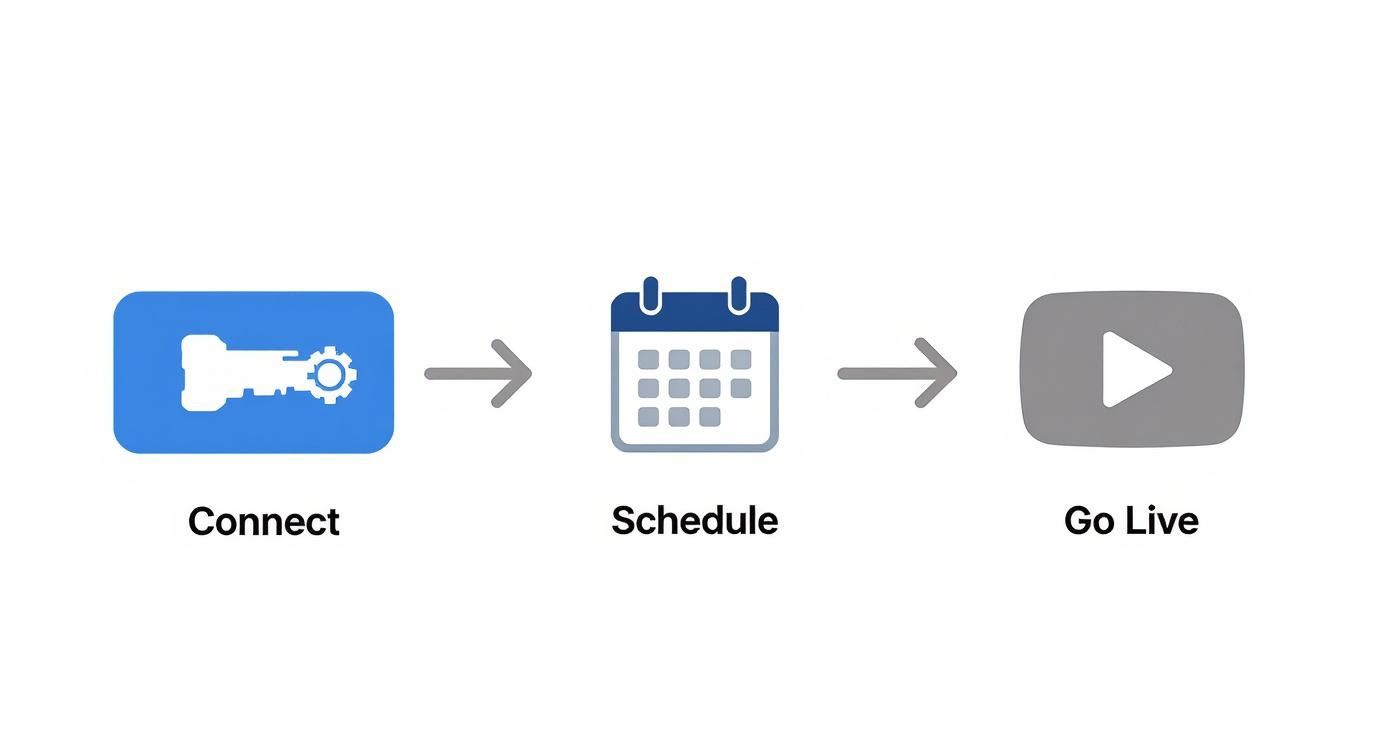
- Upload the video file to the service.
- Connect your Facebook Page by signing in with Facebook.
- Set the date and time.
- At that time, the service starts the Live video on your Page and plays the file once.
This is what Pre-recorded Live Stream does. It can send the same video to Facebook, YouTube and other platforms at once, with up to 3 hours per stream. The pricing section has the plan details.
OBS or a cloud service?
| Live Producer + OBS | Cloud service | |
|---|---|---|
| Cost | Free | Monthly plan |
| Computer at start time | Must be on, with OBS running | Can be off |
| Internet during the stream | Your upload speed for the full video | Not needed |
| Schedule further than 24 hours ahead | Yes, with a Live event | Yes |
| Facebook and YouTube at once | Only with a plugin or an extra service | Yes, on multistream plans |
Mark it as pre-recorded
Facebook's Live policies ask for three things that matter here:
- Mark pre-recorded content as pre-recorded. If a broadcast mixes live and recorded footage, only the recorded part needs the label.
- Do not present footage as happening in real time when it is not.
- Do not use Live for looping videos, static images or poll-only videos.
A label is easy to add. Put "Recorded" or "Recorded session" in the title, and a line of text on screen in the first seconds of the video. Then be in the chat yourself, which is the live part of the broadcast. Our article on fake live streams explains where the honest line is.
During the broadcast
- Watch the chat from Live Producer, or ask a Community Manager to moderate it. Live Producer lets you add one.
- Pin a comment with the main link, such as a sign-up page or a product page.
- Run a poll from Live Producer to ask viewers a question while the video plays.
- Reply by name. Viewers see that a real person is in the chat.
After the broadcast, Facebook keeps the Live video on your Page for 30 days. You can download it or share clips as reels in that time. After 30 days, Facebook deletes it (how Live videos are stored). Keep your original file, so you can post it again as a regular video.
FAQ
Can I schedule a pre-recorded Facebook Live from my phone?
No. Meta says scheduling a Live video and creating a Live event are only available on desktop.
How far ahead can I schedule a Facebook Live?
Live Producer schedules a Live video up to 24 hours ahead. For a later date, create a Live event.
Why does my scheduled Live not start?
With streaming software, the stream starts only if the software is connected and sending video at the scheduled time. If OBS is closed or the computer is asleep, nothing goes out. Check the stream key too, because Meta says it is valid only for the current stream.
Can I stream the same video to Facebook and YouTube at the same time?
Yes, with a multistream tool. Each platform has its own rules. Our guide to live streaming a pre-recorded video on YouTube covers YouTube, and our guide to streaming to multiple platforms covers the setup.