Adding chapters to your YouTube videos is one of the quickest wins you can get for boosting viewer engagement and improving your video's SEO. You can get it done by either dropping some manual timestamps right into your video description or using the more visual editor inside YouTube Studio to carve out those sections.
Why YouTube Chapters Are a Creator's Secret Weapon
Before we get into the nuts and bolts of how to add chapters, let's talk about why this is a non-negotiable for serious creators. This isn't just about adding a neat little navigation feature; it's a strategic move that fundamentally changes how people watch and discover your content.
When you break up a long video, you instantly make it less daunting. Think about it from a viewer's perspective. They land on your video looking for a specific answer. Chapters respect their time by letting them jump straight to the good stuff. That small act of convenience pays off in a big way.
Boost Viewer Engagement and Watch Time
When viewers can easily find what they're looking for, they stick around. Instead of getting frustrated trying to scrub through a 20-minute video to find a 30-second clip, they can just click a chapter title and get immediate value. That simple click prevents them from bouncing off your video and heading back to the search results.
The numbers don't lie. On average, videos with chapters see a 23% higher watch time compared to those without. Even better, that improved experience helps keep viewers hooked, leading to an 18% boost in overall retention. It’s a clear signal to YouTube that your content delivers.
Improve Your Video SEO
Chapters are also a goldmine for SEO. Each chapter title you write acts like a mini-keyword, giving YouTube and Google's algorithms a detailed road map of your video's content. This extra context helps them understand exactly what your video is about, moment by moment.
By clearly defining the different sections, you're essentially spoon-feeding the algorithm. This massively increases the chance that YouTube will pull out specific segments of your video and feature them as "key moments" directly in the search results.
Suddenly, someone searching for a niche topic you covered for two minutes might get a search result that links them directly to that exact spot in your video. That's powerful stuff.
This quick visual breaks it down perfectly.
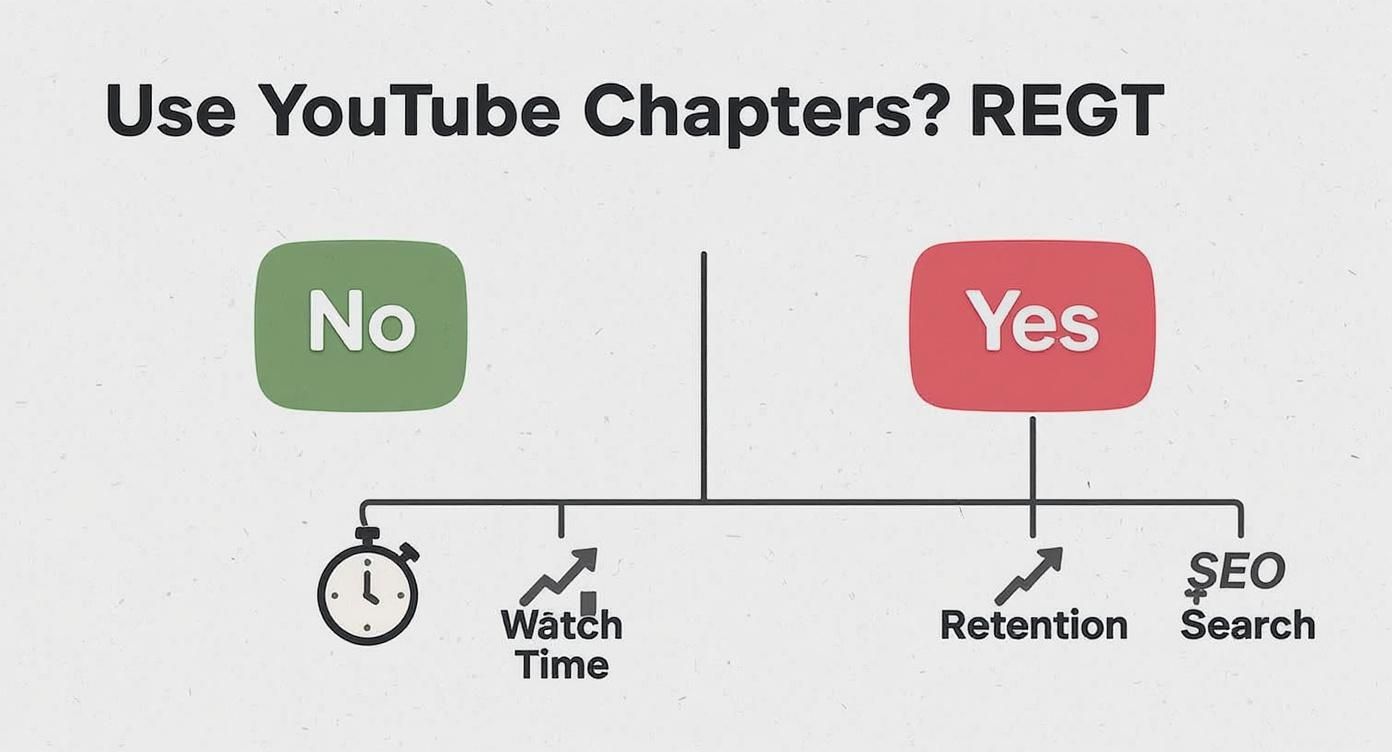
The choice is pretty clear. Taking a few extra minutes to implement chapters brings measurable gains in watch time, retention, and search visibility. And if you're already organizing your individual videos, you can take it a step further by learning how to share a YouTube playlist to guide viewers through a whole series of your content.
Adding Chapters with Timestamps in Your Description
Let's start with the classic, tried-and-true method: adding chapters by simply typing timestamps into your video's description. This is the most reliable way to get it done. It gives you absolute control over every chapter, works perfectly for brand-new uploads and older videos alike, and you don’t need any fancy tools.
Honestly, this is the foundational skill every creator should have in their back pocket.
The idea is simple. You just make a list of timecodes in your description, each with a short, punchy title. If you format it correctly, YouTube’s system will automatically read that list and slice your video's progress bar into clickable chapters. Suddenly, your content becomes way more user-friendly for anyone looking to jump straight to the good stuff.
The Ground Rules for Manual Timestamps
Now, for this to actually work, you have to play by YouTube's rules. The system is surprisingly picky about the format, and one tiny slip-up can make the whole thing fail.
Here are the non-negotiables:
- Always Start at Zero: The very first timestamp in your list must be
0:00. If you forget this, nothing else will work. This is the #1 mistake I see people make. - Keep It Chronological: Your timestamps have to be listed in sequential order. No jumping around.
- Use the Right Format: Stick to
minutes:seconds(like2:15) orhours:minutes:seconds(like1:10:45). - One Chapter Per Line: Each entry gets its own line. It should be the timestamp, a space, and then your chapter title.
- Minimum of Three Chapters: You need at least three timestamps, including the
0:00start, for YouTube to enable the chapter feature.
Key Takeaway: If your chapters aren't showing up, the first thing to check is that
0:00timestamp. Nine times out of ten, that's the culprit.
Crafting Your Chapter List
Let's make this real. Say you've just uploaded a killer tutorial on baking sourdough bread. A perfect chapter list in your description would look something like this:
0:00 Intro & Ingredients1:45 Mixing the Dough4:10 First Proof & Folding Technique8:22 Shaping the Loaf10:55 Final Proof & Scoring13:03 Baking & Cooling Tips15:40 The Final Result & Taste Test
See how clean that is? It's easy for a person to read and perfectly formatted for YouTube's bot. Each title is descriptive and tells the viewer exactly what they're about to see.
Now, compare that to a list that’s guaranteed to fail:
Incorrect Formatting (Avoid This):
- Intro (Starts at 0:00)
- 1:45 - Mixing
- Chapter 3 - 4:10
- 8.22 Shaping
This hot mess won't work. It doesn't start with a clean 0:00, it mixes up formats, and it breaks the simple "timestamp then title" rule.
To get this done on any of your videos, just pop into YouTube Studio, edit the video's description, type out your list, and hit save. The change is almost always immediate, giving your audience a better viewing experience right away.
Using the YouTube Studio Editor for Visual Control
While dropping timestamps in your description works great, it’s a bit like flying blind. You type in the numbers and hope you got the timing just right. For those of us who are more visual, the YouTube Studio editor is the way to go. It lets you add and adjust chapters directly on your video’s timeline, giving you a level of precision you just can't get from typing in numbers.
This method is a lifesaver for making small, precise tweaks after you've already published. Let's say you uploaded a long interview and notice one of your chapter breaks cuts someone off mid-sentence. Instead of having to re-upload, you can just pop into the editor, visually drag the chapter marker to the perfect spot, and save it. The immediate visual feedback is incredibly helpful.
Finding and Using the Chapter Tool
Getting to the editor is simple. Head over to your YouTube Studio, find the video you want to work on, and click the Editor tab from the left-hand menu. This brings up the timeline view where you can trim your video, add audio, and manage your chapters.
You'll see a visual representation of your video's timeline. If you already have chapters from your description, they'll show up here. If you're starting from scratch, it’s just as easy.
Here's how you do it:
- Look for the chapter track on the timeline and click to expand it.
- Drag the playhead (the vertical line that marks your position) to the exact spot where a new section should begin.
- Click the “+ ADD CHAPTER” button. A new segment will pop up on the timeline, ready for you to add a title.
This process gives you instant confirmation. You can scrub through the video frame-by-frame to find that perfect starting point, which is crucial for making your chapter breaks feel clean and intentional.
Adjusting and Naming Your Chapters
The best part about using the Studio editor is its flexibility. Once a chapter marker is on the timeline, it's not locked in. You can click and drag the edge of any chapter to fine-tune its position. This is a game-changer for videos with quick cuts or complex visuals where a few frames make all the difference.
Imagine you're making a software tutorial. You want the "Creating a New Project" chapter to start the exact moment that "New Project" window appears on screen. The visual editor makes that easy to pinpoint, whereas just guessing the timestamp for the description could take several tries to get right.
The YouTube Studio editor really shines with complex, long-form content. For detailed tutorials, multi-part interviews, or event recordings, being able to visually place and adjust chapters ensures a professional viewing experience that the description method can’t always match.
One of the neatest features is how this method syncs with your video's description. Any chapters you add or move around in the editor will automatically generate a clean timestamp list in your description box. It really is the best of both worlds—viewers get a simple list they can click, and you get pixel-perfect control over the video player's scrub bar.
Feeling swamped and don't have time to manually map out your video? YouTube's got your back with its automatic chapters feature. This is the platform's hands-off approach where its own AI scans your video—analyzing everything from visual changes and on-screen text to your spoken words—to slice it into logical sections for you.
For anyone pumping out a lot of content, this can be a lifesaver.
It works especially well for videos that have a really clear, predictable structure. Think about formats like:
- Step-by-step tutorials: Each step is a natural breaking point.
- Listicles: A "Top 5 Mistakes" video is easy for the AI to segment.
- Presentations or lectures: A new slide is a dead giveaway for a new topic.
In these cases, the AI has obvious signposts to follow, and the results are often impressively accurate. You can even set this as your default for all new uploads in YouTube Studio, making it a true "set it and forget it" timesaver.
When to Trust the AI (and When to Step In)
But letting a robot do the work isn't always the perfect solution. While the tech is good, it’s not infallible. The AI can get it wrong—it might chop a chapter at an awkward pause, miss a subtle transition, or slap on generic titles that do nothing for your SEO.
This is especially true for less structured content. For vlogs, narrative storytelling, or any video where topic changes are more fluid, the AI often struggles to find those clean breaks.
You always have the final say, though. You can manage this setting for each individual video. Just head to that video's details in YouTube Studio, click "SHOW MORE," and scroll down to the "Automatic chapters" section. From there, you can check or uncheck the box for "Allow automatic chapters and key moments."
My two cents? Use auto-chapters as a first draft, not the final cut. Let the AI do the grunt work of finding the timestamps. Then, you can pop in to polish the chapter titles, making them more descriptive and keyword-friendly. It’s the best of both worlds.
The New Wave of AI Chapter Tools
YouTube's built-in feature is just the beginning. A whole ecosystem of specialized AI tools is popping up, offering even more sophisticated ways to segment your content. These platforms often run on more advanced models that can dig deeper into your transcript and visuals.
For example, dedicated AI chapter creation tools like lunabloomai can offer a much more granular analysis, catching nuanced topic shifts that YouTube’s algorithm might otherwise miss.
Sure, this might mean an extra step in your workflow and sometimes a subscription fee, but it hints at a future where chaptering can be almost completely automated without sacrificing the quality and precision you'd get from doing it by hand. For teams managing massive video libraries, this kind of tech isn't just a convenience—it's a necessity.
Nail Your YouTube Chapters With These Best Practices
Knowing the mechanics of adding chapters is just the starting point. The real magic happens when you start thinking about them strategically—designing them to serve both your viewer and the YouTube algorithm. Let's get into the pro-level tactics that transform chapters from a simple timeline into a powerful tool for engagement.
Honestly, the best way to do this is to plan your chapters before you even hit the record button. As you're outlining your video, think about it in distinct segments. This simple mindset shift forces you to build a logical flow and ensures every part of your video has a clear, defined purpose. When you finally sit down to edit, your chapter breaks and titles are already mapped out, which makes the whole process a breeze.
Writing Chapter Titles That Actually Work
Think of your chapter titles as tiny, powerful headlines. They're prime real estate for both SEO and for convincing a viewer to stick around. They need to do more than just label a section; they should be compelling mini-headlines that clearly communicate what’s in it for the viewer, all while using relevant keywords.
Here’s what I focus on when writing titles:
- Be Descriptive, but Keep It Snappy: A title like "Building the Frame" is okay, but "Building the Deck Frame & Joists" is way better. It gives the viewer a crystal-clear idea of what they're about to see.
- Lead With Keywords: Always put the most important words at the beginning of the title. This helps viewers and search algorithms instantly grasp what the section is about.
- Get Inside Your Audience's Head: What words would someone actually type into Google or YouTube to find this specific nugget of information? Use that exact language.
Here's a key takeaway: When you optimize your chapter titles, you’re not just guiding the people already watching. You're essentially creating multiple new front doors to your video from search results. Each chapter can become a direct answer to a specific search.
How Many Chapters Are Too Many?
This is a question I get all the time. There's no single right answer, but it all comes down to the natural structure of your content. One hard rule is to avoid creating chapters that are too short—anything under 10 seconds is a no-go. They just clutter the progress bar and can make the viewing experience feel jarring.
Instead, aim for segments that feel complete on their own. A good chapter should cover a single, coherent idea or one clear step in a tutorial. If a part of your video feels like its own mini-topic, it probably deserves its own chapter. For a deeper dive into video structure, you can optimize your video for YouTube and make sure every piece of your content is pulling its weight.
Chapter Title Optimization Do's and Don'ts
Writing effective chapter titles is part art, part science. You want to be clear and keyword-rich without sounding robotic. This quick table breaks down what to aim for and what to avoid.
| Best Practice (Do) | Common Mistake (Don't) |
|---|---|
| Use action-oriented language (e.g., "Installing the Software") | Use vague, generic labels (e.g., "Part 2") |
| Include keywords naturally (e.g., "Sourdough Starter Feeding Schedule") | Keyword stuff titles (e.g., "Bread Bake Sourdough Bread") |
| Keep titles under 50 characters for readability | Write long, rambling titles that get cut off |
Think of this as a quick-reference guide. The more you practice writing titles with the "Do" column in mind, the more second-nature it will become.
Ultimately, your goal is to make the viewing experience better. Every choice, from where you place a timestamp to how you word a title, should be focused on helping your audience find the exact value they're looking for. For more strategies from other creators, check out the PlayPause blog for creator tips.
Troubleshooting Why Your YouTube Chapters Aren't Working
You spent the time mapping out your video, writing the perfect chapter titles, and adding all the timestamps to your description. You hit save, check the video, and... the chapters are nowhere to be found. It's incredibly frustrating, but the good news is that the fix is almost always surprisingly simple.
Nine times out of ten, the problem is just a tiny formatting mistake. YouTube's system for reading timestamps is very rigid, and one small error can stop the whole feature from working. Before you start digging through obscure settings, let's run through the most common culprits.
The Essential Formatting Checklist
Take a close look at the timestamp list in your video's description. It only takes one of these details to be off for the whole thing to break.
- The Zero Second Rule: Your very first timestamp must be
0:00. Without that starting point, YouTube won’t even try to read the rest of your list. - Minimum Chapter Count: You need at least three timestamps for chapters to activate. This includes the required
0:00stamp. - Chronological Order: This one sounds obvious, but it happens. Make sure your timestamps are listed in sequential order. A
5:10chapter can't come before a3:45one. - Minimum Chapter Length: Every segment has to be at least 10 seconds long. So, a timestamp at
1:20followed by another at1:25will prevent chapters from showing up.
If you’ve gone through this checklist and everything looks right, then the issue is probably a bit deeper. But honestly, these four points account for over 90% of all chapter-related problems I've ever seen.
Digging Deeper Into Channel and Video Settings
Okay, so your formatting is perfect. The next place to check is your channel's settings or the settings for that specific video. Sometimes an account-level issue or a specific video setting can override chapters.
First, see if you have any active Community Guideline strikes against your channel. Certain penalties can temporarily disable features, and video chapters might be one of them. You can find your channel's status right on the main dashboard in YouTube Studio.
Next, double-check that the video isn't marked as "Made for Kids." To comply with child privacy laws, YouTube restricts features on this type of content, and that includes video chapters.
A much less common issue, but still possible, could be a problem with the video file itself. A corrupted upload or an unusual video codec can sometimes cause weird processing glitches on YouTube's end. If you've tried everything else, it might be worth re-exporting your video. You can learn more about the best formats in our guide on how to convert MP4 to H.264, which is the gold standard for YouTube.
By working through these potential issues one by one, you'll almost certainly find what's holding your chapters back.
At Pre-recorded LiveStream, we make it easy to deliver professional, stress-free live events. Perfect your content in advance, schedule it for the perfect time, and engage with your audience in the chat while our cloud-based platform handles the flawless broadcast. Learn more and start streaming today at prerecordedlivestream.com.