
Before you can hit that "Go Live" button, there's one critical piece of info you need: your Twitch stream key. Think of it as the secure, private password that connects your streaming software—like OBS or Streamlabs—directly to your channel.
Finding it is straightforward once you know where to look. The path is Creator Dashboard > Settings > Stream.
Your Guide to the Twitch Stream Key
So, what exactly is this key? It’s a unique string of letters and numbers that acts as a secure bridge between your computer and your Twitch channel. Without it, your software wouldn't have a clue where to send your video feed. It’s like a private mailing address for your stream, making sure your content lands squarely on your channel and nowhere else.
This little code is absolutely essential, whether you're just starting out or you're a seasoned streaming veteran.
As Twitch lays it out, you just need to log in, head to your Creator Dashboard, pop into 'Settings,' and then click on 'Stream' to find your Primary Stream Key. It's a simple but vital step in the process.
Here’s exactly what that screen looks like in your Creator Dashboard.
You'll notice the key itself is hidden by default—a smart security feature. Right next to it, you have big, clear buttons to Copy or Reset it.
Why This Key Is So Important
Let me be clear: you need to guard your stream key like you would your house keys. If someone gets their hands on it, they can stream anything they want directly to your audience. That could be a huge blow to the reputation you've worked hard to build.
Here's a quick rundown of why it's so vital:
- Channel Security: It’s your first line of defense against unauthorized broadcasts on your account.
- Software Connection: It’s the universal standard for linking third-party encoders and software like OBS Studio or Streamlabs to Twitch.
- Total Control: If you ever suspect your key has been compromised, you can instantly revoke access by resetting it.
Your stream key is the key to your channel's front door. Never, ever share it publicly or leave it visible where someone could snap a picture. Treat it with the same care as any other password.
For anyone just jumping in, getting comfortable with your stream key is a fundamental part of learning what you need to stream on Twitch. Once you've got this down, you can start focusing on the fun stuff, like growing your channel.
And if you're thinking about the long game, it's never too early to learn how to monetize content and build a creator business and turn that streaming hobby into something more.
Locating Your Key in the Creator Dashboard
Getting your hands on your Twitch stream key is actually pretty simple once you know where to look. Twitch tucked it away inside the modern Creator Dashboard, which is basically your command center for everything related to your channel.
First thing's first: log into your Twitch account. See your profile icon in the top-right corner? Give that a click. A dropdown menu will appear, and you'll want to head straight for the Creator Dashboard.
Once you're in, your eyes should go to the menu on the left side of the screen. This is where all the magic happens.
Navigating to Your Stream Settings
In that left-hand menu, find the Settings option (it usually has a little gear icon next to it). Click on that, and a few more choices will pop up. The one you're looking for is Stream. This is the spot for all your broadcasting settings, and most importantly, it's where your stream key lives.
Right at the top of this page, you’ll see the "Stream Key & Preferences" section. Your Primary Stream Key will be right there, hidden behind a bunch of dots for your own protection.
This flowchart breaks down the simple path:
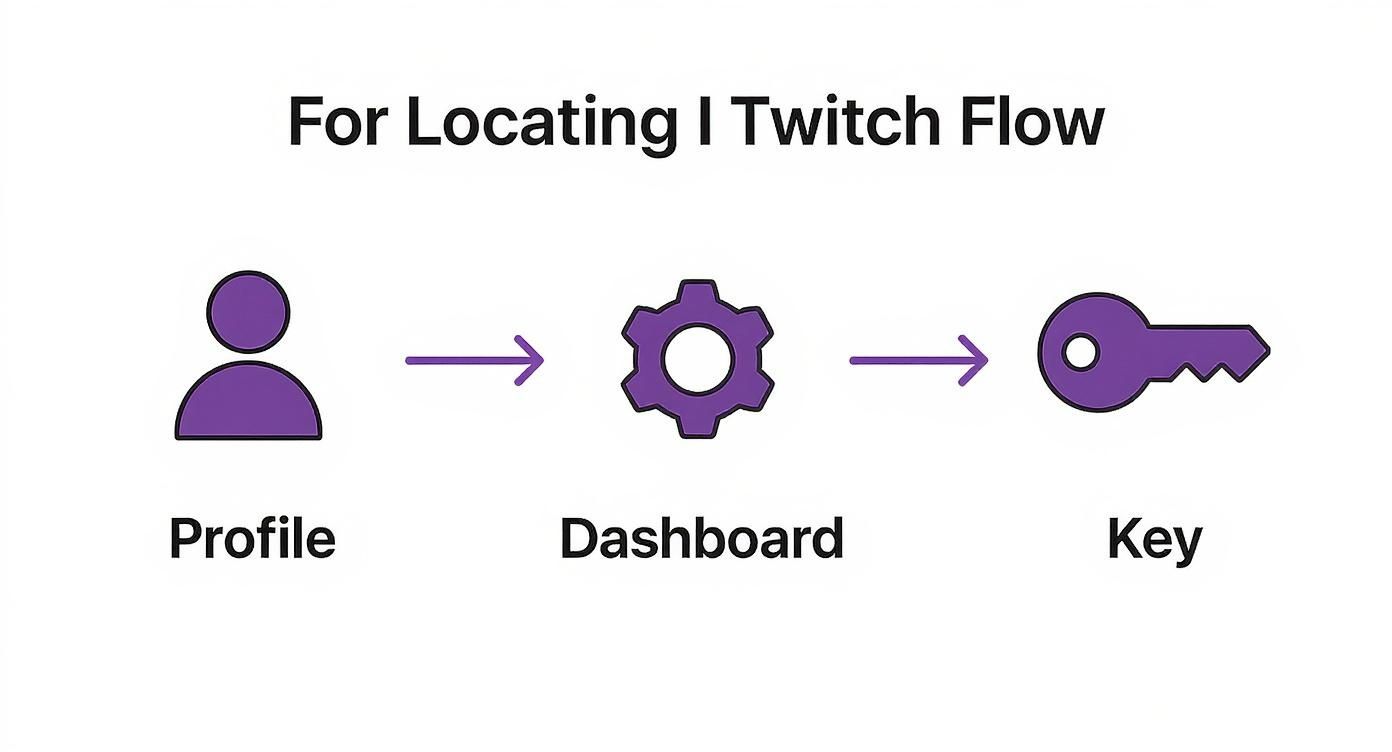
It’s a quick three-click journey: Profile -> Dashboard -> Stream Settings. Twitch designed it this way so you can get what you need and get back to streaming without digging through a maze of menus.
Copying and Resetting Your Key
You'll notice two crucial buttons right next to your hidden key: Copy and Reset.
Do yourself a favor and always use the Copy button. That key is a long, random string of characters, and trying to type it out by hand is just asking for a typo that will prevent you from going live.
The Reset button is your panic button. If you ever accidentally show your key on stream or think someone else might have it, hit "Reset." Twitch will instantly generate a new key and make the old one completely useless.
Pro Tip: When you copy your stream key, paste it directly into your streaming software like OBS or Streamlabs. Don't ever paste it into a public document, a Discord server, or anywhere else someone might stumble upon it.
With over 240 million monthly active users on Twitch, keeping your stream secure is more important than ever. Every streamer contributes to the massive 23.2 billion hours of content watched each year, so making sure you can go live without a hitch is critical. You can find more details on Twitch's growth and user engagement here to see just how big the platform has become.
Putting Your Twitch Key to Work in OBS and Streamlabs
Alright, you've got your Twitch stream key in hand (or, well, on your clipboard). Now for the fun part: actually connecting it to your broadcasting software so you can go live. This is where the magic happens, bridging the gap between your setup and your Twitch channel.
We'll cover the two most popular platforms out there: OBS Studio and Streamlabs Desktop. The good news is, once you know how to do it on one, you pretty much know how to do it on the other.
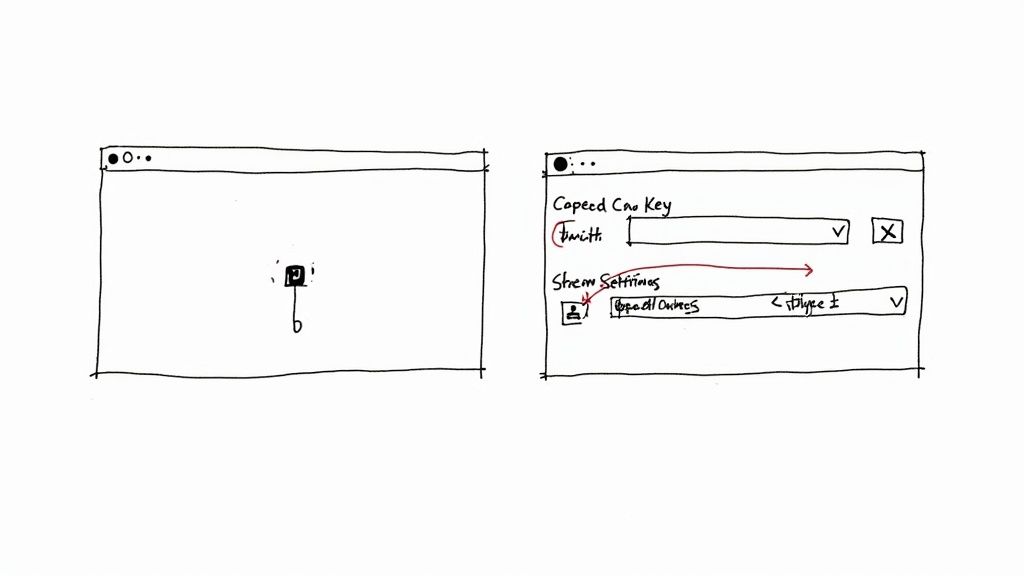
You're essentially just looking for the 'Stream' settings inside whichever application you use.
Plugging Your Key into OBS Studio
Let's start with the classic, OBS Studio. The process is super straightforward.
- Open up OBS and head to File > Settings in the top menu.
- A new window will appear. On the left-hand side, click on the Stream tab.
- Make sure the "Service" dropdown is set to Twitch.
- You'll see a field labeled Stream Key. This is its home. Paste your key right in there.
- Hit 'Apply,' then 'OK,' and you're officially ready to stream to your channel.
Setting Up Streamlabs Desktop
If you're a Streamlabs Desktop user, the steps are just as simple.
- Look for the settings gear icon, which is usually tucked away in the bottom-left corner of the app.
- Give that a click, and then select the Stream tab from the menu that pops up.
- Just like with OBS, confirm that Twitch is selected as your streaming service.
- You’ll find a dedicated input field for your stream key. Paste it in, save your settings, and you're good to go.
Getting your software dialed in is a huge part of the streaming journey. If you're exploring your options, our guide on the best free live streaming software is a great place to start looking at what else is available at https://prerecordedlivestream.com/blog/best-free-live-streaming-software.html.
A Note on Connecting Your Account Directly
Most modern streaming software, including both OBS and Streamlabs, now offers a much simpler way to connect: just log in with your Twitch account. This method completely bypasses the need to manually handle a stream key. So, which method should you use?
Here's a quick breakdown to help you decide.
Stream Key vs Direct Account Connection
| Feature | Using Stream Key | Connecting Account |
|---|---|---|
| Simplicity | Requires manual copy and paste. | Simple login with username/password. |
| Control | Full manual control; great for specific tools or restreaming. | Automated; software manages the connection for you. |
| Security | Key must be kept private. If leaked, it needs resetting. | Relies on your Twitch account security (2FA is a must!). |
| Features | Primarily for sending your video feed. | Often unlocks extra features like Twitch chat/activity docks. |
Ultimately, logging in directly is fantastic for its ease of use and integrated features like built-in chat docks. However, knowing how to use a stream key gives you more flexibility, especially if you're working with third-party tools or want to learn how to stream on multiple platforms seamlessly.
Expert Tip: While total streamer numbers have seen some dips, Twitch viewership remains massive, with over 50 million hours watched daily. A secure and efficient setup is your best bet for grabbing the attention of the 2 million+ average viewers online at any moment. Understanding these Twitch viewership trends can give you a real edge.
Keeping Your Stream Key Secure
Think of your stream key as the key to your house. You wouldn't just hand that out to anyone, right? The exact same logic applies here. Protecting your stream key is one of the most important things you can do as a streamer to make sure your channel stays your channel.
Seriously, never share it publicly. Don't paste it in a Discord chat, don't read it aloud on stream, and for the love of all things holy, never, ever let it show up on your screen. If someone else gets their hands on your key, they can broadcast anything they want directly to your followers. That could tank the reputation you've spent months or years building, and it might even get your channel suspended if they stream something that breaks Twitch's rules.
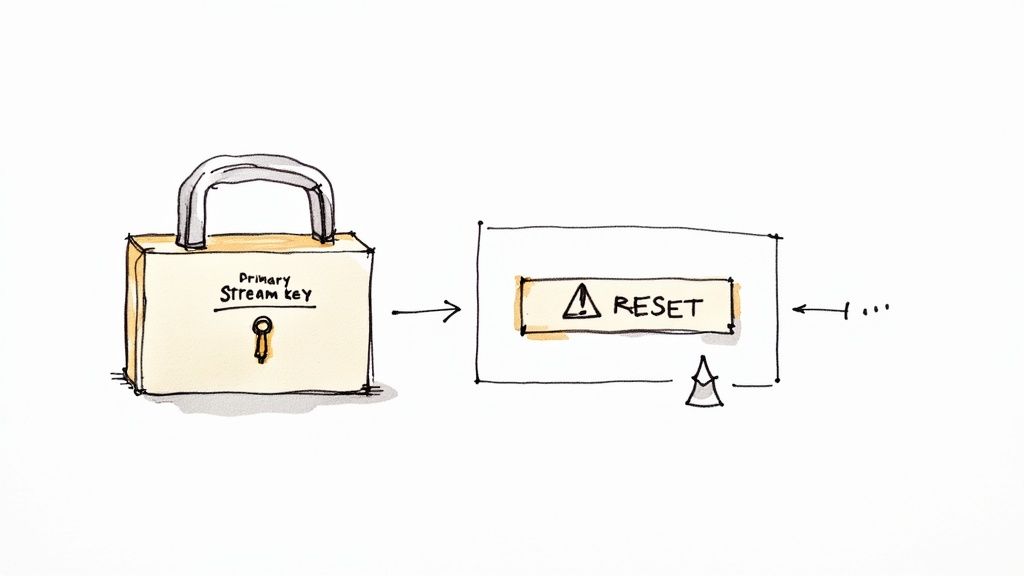
When and Why to Reset Your Key
That little Reset button next to your key is your emergency security measure. You won't need it often, but knowing when and why to use it is a game-changer for keeping your channel safe.
So, when should you hit it? Immediately, if you:
- Accidentally flash your key on stream for even a second.
- Suspect someone might have copied it without your permission.
- Are revoking access for a friend, moderator, or service that no longer needs it.
Smashing that "Reset" button instantly kills your old key and gives you a new one. The old one becomes totally useless, severing any unauthorized connection. Just remember, after you reset, you absolutely have to paste the shiny new key into your streaming software like OBS or Streamlabs. Your old key is toast, and you won't be able to go live again until you update it.
Crucial Takeaway: A compromised stream key means a compromised channel. The second you think there's a problem, reset your key. No hesitation. It takes less than 5 seconds and gives you immediate peace of mind.
Taking this simple step is your best line of defense. It guarantees that you—and only you—control what gets broadcast to your community. Managing your stream key securely is just as vital as knowing how to find my stream key on Twitch to begin with. Make it a core part of your streaming routine to keep your channel safe and professional.
Troubleshooting Common Connection Issues
So you've found your Twitch stream key and plugged it into your broadcasting software, but you're still hitting a wall. Seeing errors like "Authentication failed" or "Could not connect to server" is incredibly frustrating, but don't worry—these are common hurdles, and the fixes are usually pretty straightforward.
First, let's look at the most frequent culprit: the key itself. If you typed it out by hand, there's a good chance a small typo has slipped in. Even a single wrong character will stop the connection cold. This is why you should always use the "Copy" button directly from your Twitch dashboard. It completely eliminates the risk of human error.
While you're at it, just give your streaming software settings a quick glance. Make sure the service you're broadcasting to is actually set to Twitch. It sounds simple, but you'd be surprised how often this gets overlooked, especially if you stream on multiple platforms.
Digging a Little Deeper
If those simple checks don't solve the problem, your computer's own security might be getting in the way. A firewall can sometimes mistake your stream for a threat and block it. A quick way to test this is to temporarily disable your firewall and see if the stream connects. If it does, you've found your issue! You'll just need to go back into your firewall settings and add an exception for your streaming software (like OBS or Streamlabs).
Of course, the problem might not be with your gear at all, but with your internet connection. Streaming requires a steady, strong upload speed. If your connection is unstable or slow, your software won't be able to maintain a solid link to Twitch's servers. If you suspect this might be the case, it's worth learning more about how to improve my upload speed to make sure your internet is up to the task.
Final Resort: The Reset Button
When all else fails and you're still getting persistent authentication errors, try resetting your stream key on Twitch. This generates a brand-new key and can clear out any old, corrupted data that might have been causing the hang-up. Just remember to paste the new key into your software
Common Questions About Your Twitch Stream Key
Getting the hang of your stream key is a big step, but a few common questions always seem to trip people up. Let's clear the air so you can manage your stream with confidence.
What Happens If I Accidentally Show My Stream Key?
This is a classic streamer nightmare, but the fix is simple if you act fast. If your key ever gets leaked on stream or anywhere else, reset it immediately. Don't finish your sentence, don't wait for the next scene transition—stop what you're doing.
Head straight to your Creator Dashboard, go to Settings > Stream, and hit that Reset button. Twitch will instantly generate a brand-new key and, more importantly, make the old one completely useless. This locks out anyone who might have grabbed it. Just remember to pop that new key into your streaming software before you go live again.
Does My Stream Key Change Every Time I Stream?
Nope. Your Twitch stream key is persistent. It stays the same day after day, stream after stream, until you decide to manually reset it.
A lot of people think of it like a one-time-use code, but that's not how it works. It's much more like a permanent password that connects your streaming software to your channel. It’s designed for consistency.
The only time you’ll ever need to generate a new one is if you think it’s been compromised or if you want to cut off access from a tool or service you previously connected.
Can I Find My Key on the Twitch Mobile App?
You won't find your stream key on the Twitch mobile app. That key is specifically for desktop broadcasting software like OBS, Streamlabs, or Twitch Studio.
When you stream directly from your phone using the Twitch app, it's already logged into your account, so the connection is handled automatically in the background. No key is needed. The key is only for third-party software that needs a way to prove it has permission to stream to your channel.
Ready to stream your polished, pre-recorded content without the stress of going live? Pre-recorded LiveStream lets you schedule your videos to broadcast live on Twitch, YouTube, and more, so you can engage with your chat while our cloud-based system handles the technical side. Perfect your content, schedule it, and enjoy the show. Learn more at Pre-recorded LiveStream.